On This Page11
- 01Introduction: When Chrome Stops Searching the Way You Expect
- 02What Does Changing the Search Engine on Chrome Mean?
- 03How to Change Search Engine on Chrome (Desktop)
- 04How to Add a Search Engine That’s Not Listed
- 05How to Change Search Engine on Chrome (Mobile)
- 06Why Your Search Engine Keeps Changing in Chrome
- 07How to Prevent Chrome Search Engine Changes
- 08How to Reset Chrome Search Settings (If Needed)
- 09Why Many Users Choose Google as Their Default
- 10Chrome Search Engine vs Browser Confusion
- 11Conclusion: A 2-Minute Fix That Improves Daily Browsing
Introduction: When Chrome Stops Searching the Way You Expect
If you’ve ever typed a query into Chrome’s address bar and ended up on a search engine you didn’t choose, you’re not alone. Chrome’s default search engine can change due to updates, extensions, or software installs, often without much warning.
The good news is that fixing it is simple.
This guide shows how to change the search engine on Chrome, step by step, using clear instructions and visual references so you can follow along confidently, even if you’re not technical.
What Does Changing the Search Engine on Chrome Mean?
When you change the search engine in Chrome, you’re deciding which search provider Chrome uses when you type into the address bar (also called the omnibox).
Once updated:
- All address-bar searches use your selected engine
- New tab searches follow the same engine
- You don’t need to visit the search engine’s website manually
How to Change Search Engine on Chrome (Desktop)
This works the same on Windows, macOS, and Linux.
Step 1: Open Chrome Settings
- Open Google Chrome
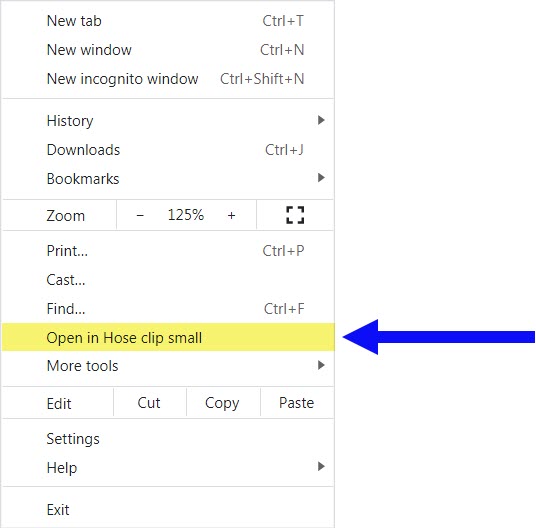
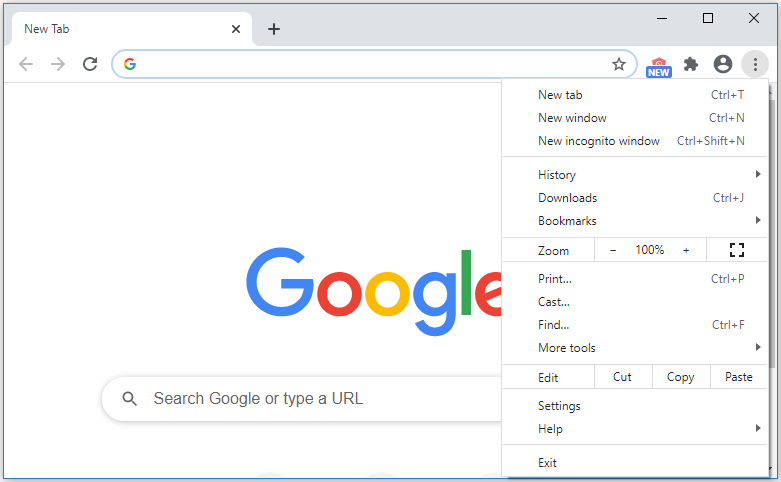
- Click the three dots in the top-right corner
- Select Settings
Step 2: Go to the Search Engine Section
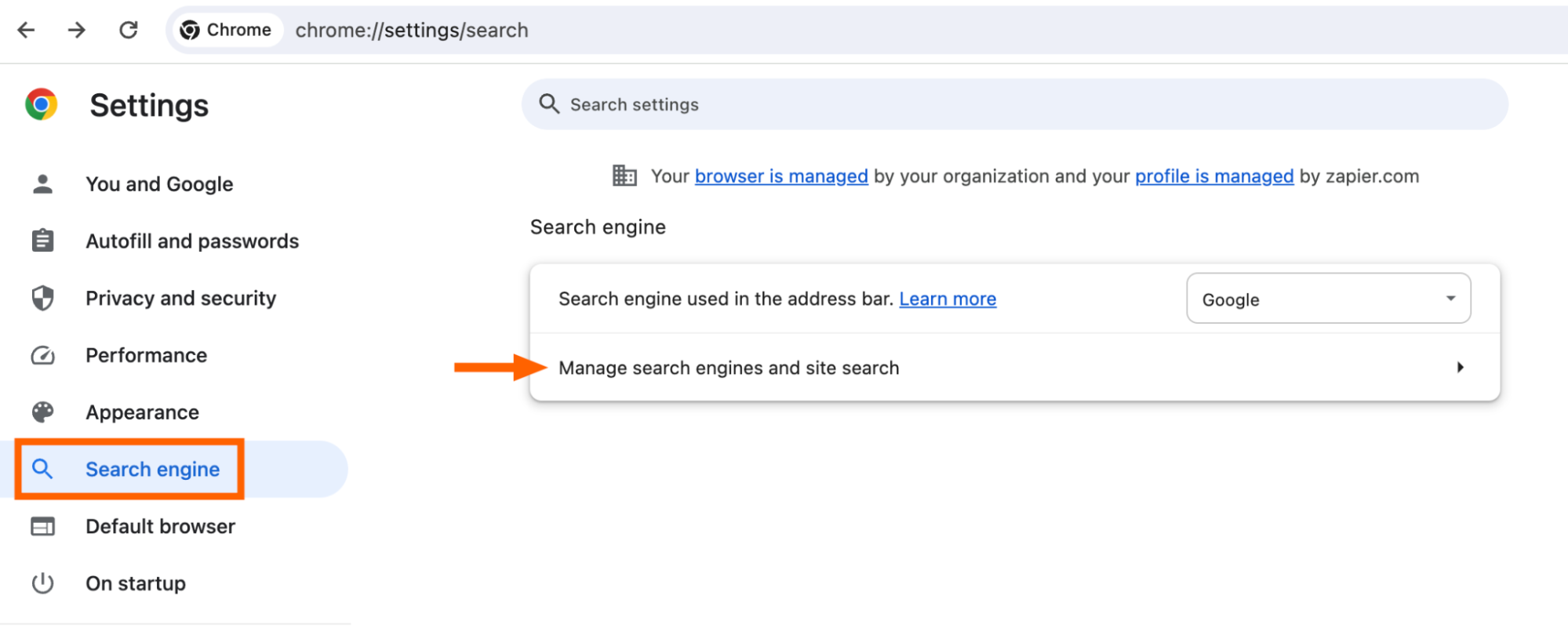
- In the left-hand menu, click Search engine
- Look for “Search engine used in the address bar”
Step 3: Choose Your Preferred Search Engine
- Click the dropdown menu
- Select your preferred option (Google, Bing, DuckDuckGo, Yahoo, etc.)
Changes save automatically. There’s no “Apply” button.

How to Add a Search Engine That’s Not Listed
If your preferred search engine doesn’t appear, you can add it manually.
Step 1: Open Manage Search Engines
- In Settings → Search engine
- Click Manage search engines and site search

Step 2: Add a New Search Engine
- Scroll to Site search
- Click Add
- Enter:
- Search engine name
- Shortcut keyword
- URL with
%sin place of the search term
Example:
https://www.example.com/search?q=%s
- Save and set it as default
How to Change Search Engine on Chrome (Mobile)
On Android
- Open Chrome
- Tap the three dots
- Go to Settings
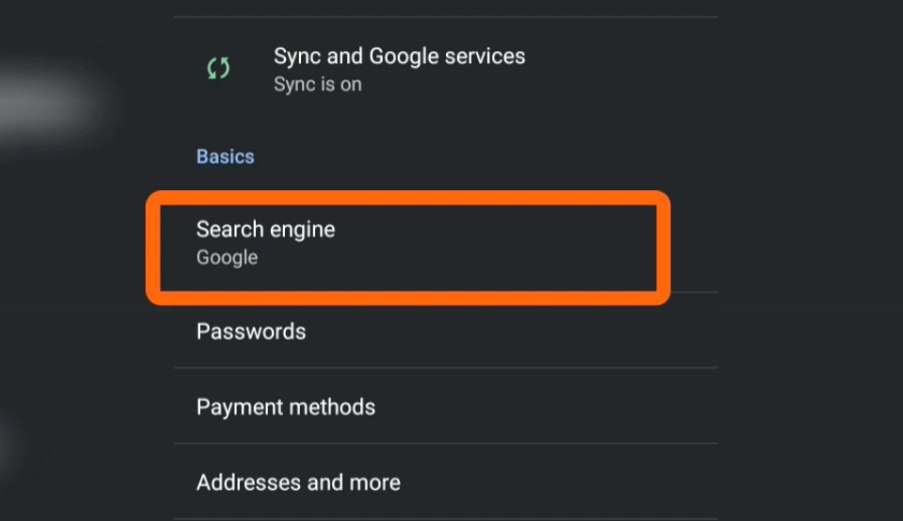
- Tap Search engine
- Select your preferred engine
On iPhone or iPad
Chrome on iOS follows a similar process:
- Open Chrome
- Tap More (three dots)
- Go to Settings
- Tap Search engine
- Choose your preferred option


Why Your Search Engine Keeps Changing in Chrome
If your search engine keeps reverting, the cause is usually not Chrome itself.
Common reasons include:
- Browser extensions overriding settings
- Free software installs with bundled add-ons
- Malware or adware
- Managed device policies (work or school devices)
How to Prevent Chrome Search Engine Changes
To make your setting stick:
- Review and remove unnecessary extensions
- Avoid “Express” or “Recommended” software installs
- Use Chrome’s built-in reset if needed
- Run a malware scan if changes persist
If the problem continues after a reset, an extension is almost always responsible.
How to Reset Chrome Search Settings (If Needed)
If changes won’t stick:
- Go to Settings
- Click Reset settings
- Select Restore settings to their original defaults
This:
- Keeps bookmarks and passwords
- Removes extensions
- Resets search engine behavior
Why Many Users Choose Google as Their Default
Many users switch back to Google because of:
- Familiar interface
- Fast and relevant results
- Strong local and map-based search
- Consistent performance across devices
That said, Chrome works equally well with other search engines if privacy or alternative results matter more to you.
Chrome Search Engine vs Browser Confusion
A quick clarification helps here.
Chrome is a browser, not a search engine.
The search engine is the service Chrome sends your query to.
Changing the search engine does not change Chrome’s performance or features, only where results come from.
Conclusion: A 2-Minute Fix That Improves Daily Browsing
Knowing how to change the search engine on Chrome puts control back in your hands. It takes less than two minutes, works across devices, and immediately improves your browsing experience.
If your organization needs help managing browser settings, cleaning up unwanted extensions, or standardizing search behavior across teams, fill out our contact form or reach out to us today. We help users simplify technology so it works the way it should.

