
Last Updated on September 25, 2026
Images are killing your Google rankings if they’re not optimized. Google uses Core Web Vitals as a ranking signal, and images directly affect two of them. An uncompressed image can add 2 to 4 seconds to your page load time.
Converting to WebP and compressing reduces that by 1 to 3 seconds. Missing alt text means Google can’t understand what your images show.
Good image SEO comes down to three things: compress every image to under 100 KB, write descriptive alt text, and use proper file names. These changes alone can move pages from page 2 to page 1 within weeks. Image optimization isn’t optional anymore. It’s a core ranking factor.
Why Images Matter More Than You Think?
Most SEO guides focus on keywords and backlinks. They barely mention images. That’s a major mistake. For image-heavy pages, images are often the single biggest factor determining your rankings.
Here’s why. Google cares about user experience. A page that takes 5 seconds to load is worse than a page that loads in 2 seconds. Users bounce. Google notices. Your rankings drop.
Images are the primary reason pages load slowly. A single unoptimized image can add several seconds to your page load time. On mobile, where most people browse, slow load times kill your rankings.
The second reason images matter is indexing. Google needs to understand what your images show. It can’t see them the way humans do. It relies on file names, alt text, and surrounding content to understand image meaning. Missing these signals means your images don’t rank in Google Images search results. That’s lost traffic.
According to research from TinyPNG’s 2026 analysis, optimizing images typically improves a page’s Core Web Vitals score from poor to good within weeks. This directly correlates with ranking improvements for competitive keywords.
Google’s View of Images and Rankings
Google officially confirmed that Core Web Vitals are ranking signals back in 2021. Three metrics matter. One of them is Largest Contentful Paint, which measures how long it takes for the biggest visible element on your page to load.
For most pages, that biggest element is an image. Your hero image. Your first blog photo. Your product picture. That’s the LCP image.
Google’s good threshold is under 2.5 seconds. A large, uncompressed JPG can easily take 3 to 5 seconds to load on a mobile connection. You’re already failing before the page even finishes loading.
The second metric that images affect is Cumulative Layout Shift. This measures how much content shifts around as the page loads. When your images don’t have width and height attributes, the browser doesn’t know how much space to reserve. The image loads. Content jumps. Your CLS score tanks.
These aren’t minor signals. Google directly uses Core Web Vitals in ranking algorithms. A page with poor Core Web Vitals gets ranked below pages with good Core Web Vitals, even if the content is better.
How Image Size Directly Affects Rankings
Image file size has a direct, measurable impact on your Largest Contentful Paint score. Let’s look at a real example.
A typical uncompressed hero image is 2 to 4 megabytes. That single image can add 2 to 4 seconds to your page load time on a standard mobile connection.
Now convert that same image to WebP format at 75 percent quality. The file size drops to 400 to 800 kilobytes. The visual quality looks nearly identical to human eyes. But your LCP improves by 1 to 3 seconds.
That’s not a small difference. You just moved from poor to good on Google’s LCP scale.
This matters because Google’s algorithm notices. Pages with good LCP scores rank higher than pages with poor LCP scores. The actual improvement depends on how competitive your keywords are, but research shows pages can move up multiple positions just from improving Core Web Vitals.
The math is simple. Optimize your images. Improve your LCP. Improve your rankings.
Image Alt Text and SEO Rankings
Alt text serves two purposes. It helps people who use screen readers understand images. It also helps Google understand images.
Google reads your alt text and uses it as a ranking signal. Alt text tells Google what the image is about. This helps your page rank for keywords related to that image.
But here’s where most people get it wrong. They write bad alt text.
Bad alt text looks like this. Just the word “image.” Or keyword stuffing like “image seo tips image optimization seo ranking images google.”
Google understands that’s spam. Keyword stuffing in alt text looks exactly like keyword stuffing anywhere else. It’s not helpful. It’s manipulation. Google penalizes it.
Good alt text describes the image naturally in 5 to 15 words. It includes your target keyword only if it fits naturally. It reads like something a human would write if they were describing the image to someone who couldn’t see it.
For example. “Before and after comparison of WebP versus JPG compression at 75 percent quality.” That’s good alt text. It describes what the image shows. It includes relevant keywords. It reads naturally.
Alt text also indirectly affects rankings by improving page experience. Visually impaired users can understand your content better. They stay longer. They engage more. Google notices user engagement. Better engagement signals mean better rankings.
Image File Names and Ranking Signals
Your image file name is one of the first things Google reads when it encounters an image. It uses the file name as a ranking signal before it even analyzes the visual content.
Most people name images terribly. They upload a photo straight from their camera. The file name is something like IMG_4821.JPG or photo1.png. Google learns nothing from that. It’s generic.
A good file name is descriptive, lowercase, and hyphen separated. It includes relevant keywords naturally.
Bad file names hurt you. They send no signals to Google about what the image is. Good file names send clear signals.
Let’s compare.
A page about WebP image compression with a file named IMG_4821.jpg tells Google nothing. A page about WebP image compression with a file named webp-compression-vs-jpg-quality.webp tells Google exactly what the image is about.
You’re competing against thousands of other pages for the keyword “webp compression.” When Google crawls your competitor’s page, their images have good file names. When Google crawls your page, your images have generic file names. Who ranks higher?
The competitor with better image file names. It’s that simple.
The file name is a small factor compared to content quality and backlinks. But small factors add up. When you’re competing for a tight keyword, every signal counts.
The Complete Image SEO Optimization Process
Optimizing images for SEO isn’t complicated. It’s just multiple small steps done correctly.
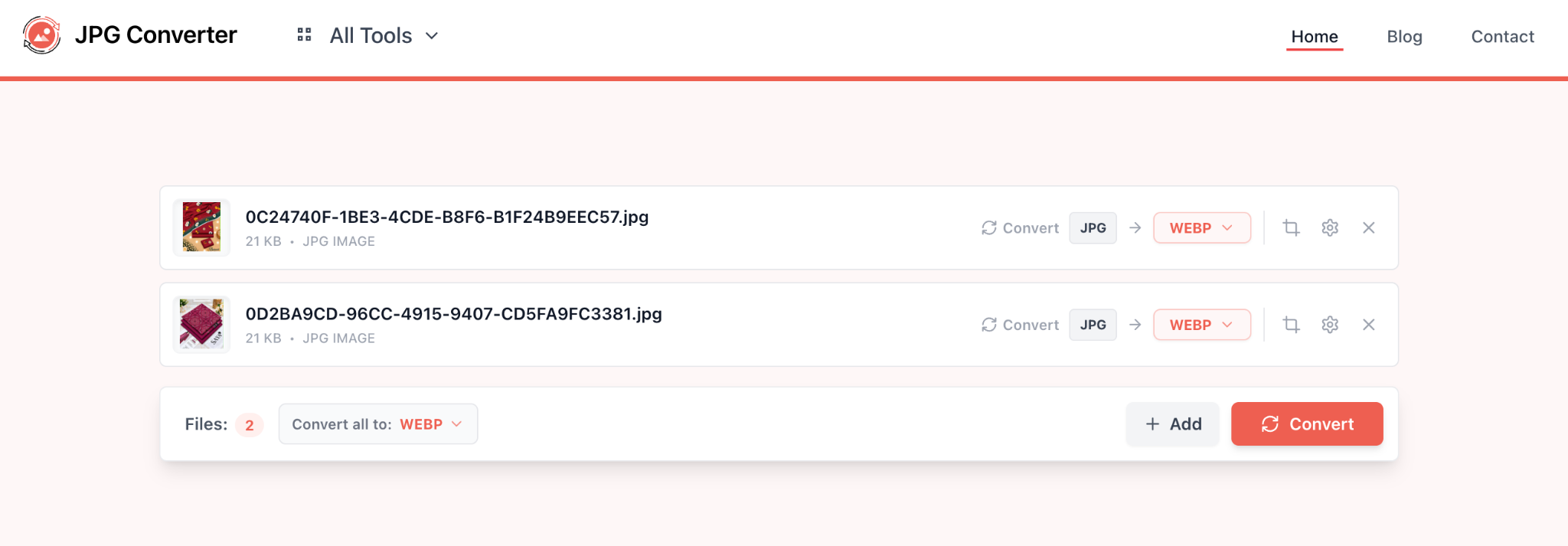
Step 1: Convert to WebP Format
Start with WebP. Google explicitly tells webmasters to use WebP. When you run Google PageSpeed Insights on almost any site, the top recommendation is “Serve images in next-gen formats.”
WebP is the next gen format Google wants to see. It produces files 25 to 35 percent smaller than equivalent JPG at the same visual quality.
Your hero image at 2 megabytes as JPG becomes 600 kilobytes as WebP. Your blog images at 800 kilobytes as JPG become 300 kilobytes as WebP.
Browser support is 97 percent of users. The 3 percent using older browsers aren’t worth sacrificing performance for. WebP is the standard now.
Converting to WebP is literally the fastest ranking improvement you can make on image-heavy sites. You can use JPGConverters.com to convert your images to any desired format, like JPG to WebP.
Step 2: Compress Every Image
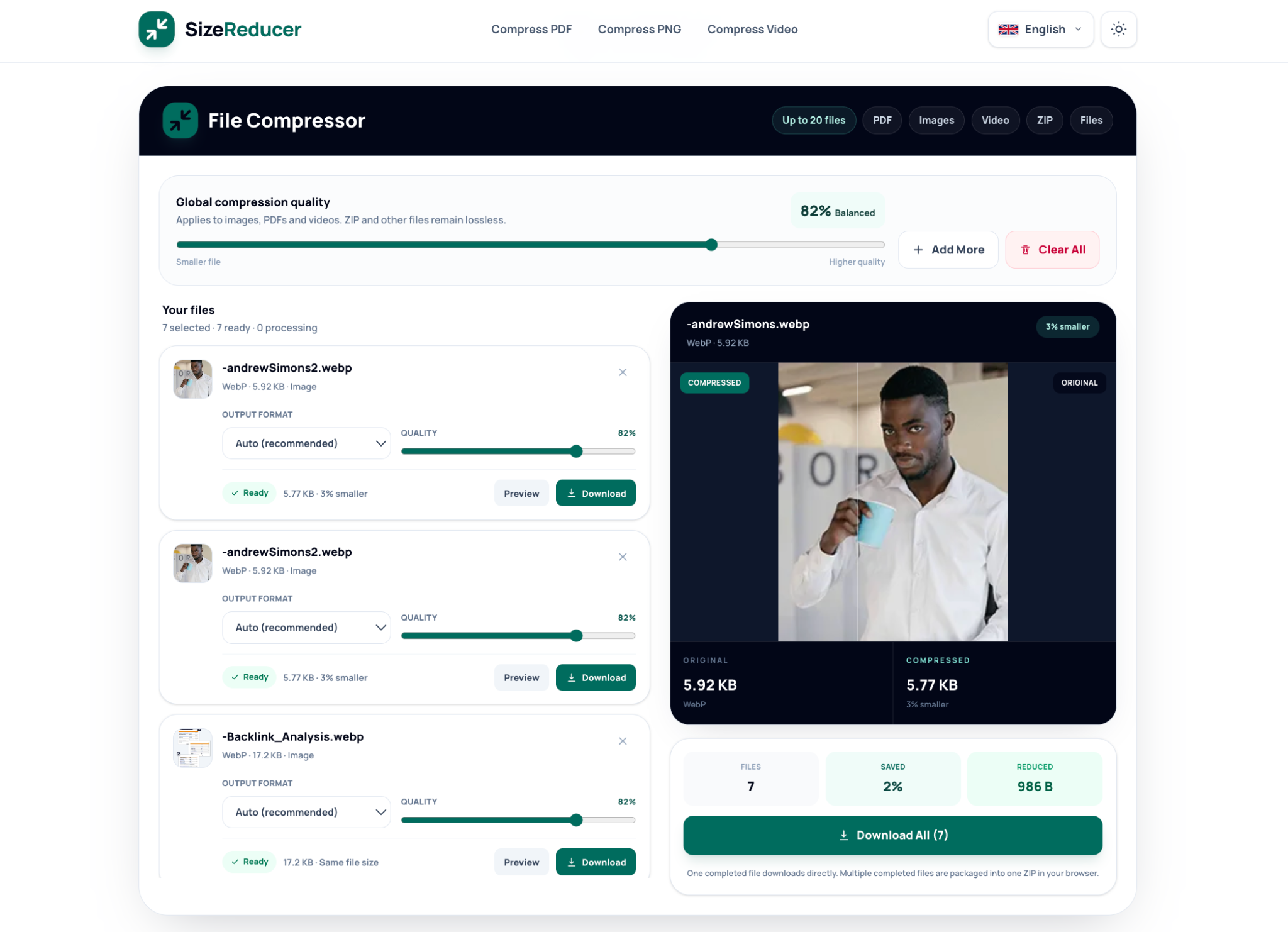
After converting to WebP, compress images aggressively. Aim for under 100 kilobytes per image. Hero images can go up to 200 kilobytes if necessary, but no more.
At 75 percent quality, images still look identical to the original to human eyes. File sizes drop dramatically. Load times improve.
You need compression tools. There are free online tools. There are paid services. WordPress has plugins. Whatever you use, the goal is the same. Get every image under 100 kilobytes.
This single step improves LCP by 1 to 2 seconds for most pages. That’s meaningful.
Step 3: Write Descriptive Alt Text
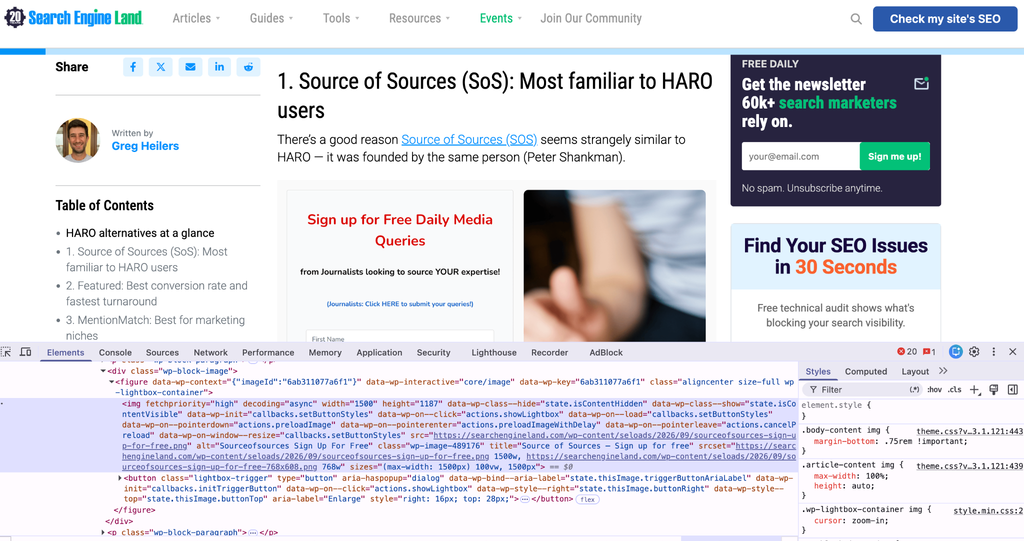
For every image that adds meaning to your page, write alt text. Aim for 5 to 15 words. Describe what the image shows. Include your target keyword if it fits naturally.
For decorative images that don’t add content value, use empty alt text. alt=”” tells Google and screen readers the image is decorative and can be skipped.
Test your alt text by asking yourself this. If someone who couldn’t see the image read just the alt text, would they understand what the image was supposed to show? If yes, your alt text is good.
Step 4: Use Descriptive File Names
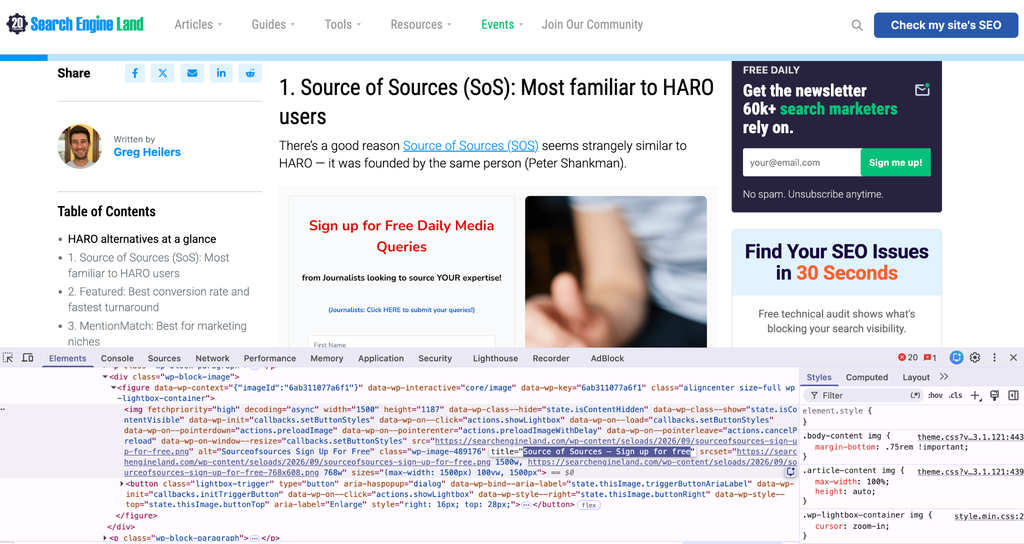
Before uploading, rename your images. Use lowercase, hyphens, and descriptive language.
Instead of vacation_photo_2026.jpg, use bali-tropical-beach-sunset-palm-trees.webp.
This signals to Google what the image is about. It reinforces your page’s topic. It’s a small factor, but small factors compound.
Step 5: Add Width and Height Attributes
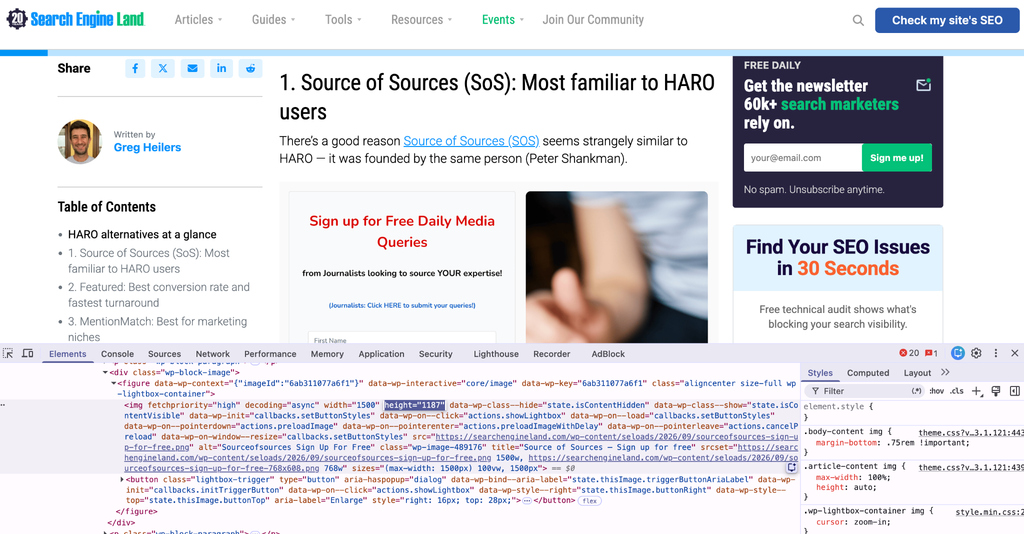
Every image should have explicit width and height attributes. This tells the browser how much space to reserve before the image loads.
Without these attributes, the browser doesn’t know how big the image is. When it loads, content shifts. Your CLS score gets worse.
With these attributes, the browser reserves the right space. Content doesn’t shift. Your CLS stays good.
It’s literally one extra attribute per image. It takes seconds. It improves rankings.
Step 6: Use Lazy Loading for Below-Fold Images
Images that appear below the fold should have loading=”lazy”. This tells the browser not to load them until the user scrolls to them.
But here’s the critical rule. Never lazy-load your LCP image. Your hero image or first large image should load immediately. Use fetchpriority=”high” on the LCP image to make sure it loads first.
Lazy loading below-fold images means your LCP image loads faster. Your page becomes faster to interactive.
How to Know If Images Are Hurting Your Rankings?
Two tools give you perfect visibility into whether images are hurting your SEO.
Google PageSpeed Insights
Go to pagespeed.web.dev. Enter your URL. Look at the opportunities section.
You’ll probably see recommendations like “Serve images in next-gen formats.” That means you’re still using JPG or PNG where WebP would work.
“Properly size images” means you’re serving images larger than they appear on screen. “Efficiently encode images” means your images aren’t compressed enough.
PageSpeed also tells you which specific image is your LCP image. That’s the one to fix first.
Run PageSpeed on your top 10 pages. You’ll immediately see which images are causing problems.
Google Search Console Core Web Vitals Report
This is more important than PageSpeed. Go to Google Search Console. Navigate to Experience, then Core Web Vitals.
This shows real data from real users visiting your site. PageSpeed Insights uses a simulated connection. Search Console shows what’s actually happening.
Look for pages with poor LCP or CLS scores. These are your ranking problems. Prioritize fixing these pages first.
The combination of PageSpeed Insights for diagnosis and Search Console for prioritization tells you exactly what to fix and in what order.
The Impact of Image SEO on Competitive Keywords
Image optimization has the biggest impact on competitive keywords in image-heavy niches.
If you run an ecommerce site selling products, images matter enormously. Your competitors probably have unoptimized images. You optimize yours. You get faster page loads. Google ranks you higher.
If you run a photography blog, images matter. Most photography blogs have massive uncompressed images because photographers are proud of their work. Compress yours. You’ll be faster than competitors. You’ll rank higher.
If you run a fashion or lifestyle blog, your competitors definitely have heavy images slowing them down. You optimize. You win on speed. You win on rankings.
Food blogs, travel blogs, real estate sites. Any niche that’s image-heavy benefits from image optimization. You get an advantage over competitors who ignore this.
The less competitive your keywords, the less image optimization matters compared to content quality. But in competitive niches, it’s a massive ranking factor.
Core Web Vitals and Image Optimization
Core Web Vitals include three metrics. Images directly affect two of them.
Largest Contentful Paint measures how long until the largest visible element loads. Cumulative Layout Shift measures how much content jumps around.
Interaction to Next Paint measures responsiveness, which images don’t directly affect. But heavy images can indirectly slow down your site’s overall responsiveness.
Google’s threshold for good LCP is under 2.5 seconds. For good CLS it’s under 0.1. For good INP it’s under 200 milliseconds.
Most image-heavy pages fail LCP. They take 4 to 8 seconds to load. Image optimization moves them to 2 to 3 seconds. That’s the difference between poor and good.
CLS failures usually happen because images don’t have width and height attributes. Adding these attributes fixes CLS immediately.
Semantic SEO and Image Context
Google doesn’t understand images by analyzing pixels alone. It uses context clues. Surrounding text. Page topic. Image captions. File names. Alt text.
This is where semantic SEO comes in. An image of a dog could be used on a page about dog training, dog breeds, pet care, or veterinary services. The same image means different things in different contexts.
Google uses surrounding content to understand the semantic context. If your image appears on a page about dog training with alt text about dog training, Google understands it as training-related content.
This is why image optimization isn’t just about compression and alt text. It’s about placing images on topically relevant pages. Writing surrounding content that gives context. Using captions to describe the image.
When you do this correctly, images reinforce your page’s topic. They strengthen your semantic signals. Google understands your page better. Your page ranks better.
Image SEO Best Practices Summary
Here’s the complete checklist for image optimization:
- Convert all images to WebP format. Compress to under 100 kilobytes. Write descriptive alt text in 5 to 15 words.
- Name files descriptively with hyphens and lowercase.
- Add width and height attributes to every image tag. Use lazy loading on below-fold images only.
- Never lazy-load your LCP image. Add fetchpriority equals high to your LCP image.
- Place images on topically relevant pages. Use captions to add context. Link images to related content when appropriate.
- Run PageSpeed Insights monthly. Monitor Core Web Vitals in Search Console weekly. Track rankings for your top pages.
- The whole process takes hours the first time. After that, it’s just checking tools monthly and fixing any new images.
Common Image SEO Mistakes to Avoid
People make the same mistakes repeatedly with images.
They stuff keywords into alt text thinking it helps. It doesn’t. It looks like spam. Google penalizes it.
They serve the same massive image on all devices. Responsive images let you serve different sizes for phones, tablets, and desktops. This speeds up mobile load times.
They ignore file names and upload images with generic names straight from their camera. File names matter. Spend 10 seconds renaming them.
They add images to pages without considering if the images match the page topic. An image of a dog on a page about cat training doesn’t help. Topical relevance matters.
They lazy-load everything including the hero image. Lazy loading the LCP image makes it load slower. Never do this.
They don’t add width and height attributes. This causes layout shift. Add these in every single image tag.
They check their rankings once and expect instant improvements. Image optimization takes 1 to 4 weeks to show ranking benefits. Be patient.
When Image Optimization Has the Biggest Impact?
Image optimization has immediate impact when you have multiple image-heavy pages that currently rank on page 2 or 3. Improving those pages by 1 to 2 seconds can move them to page 1.
It also has big impact when your competitors rank higher but have worse images. You optimize. You become faster. You rank higher.
Image optimization matters least when you rank page 1 for your main keywords and you’re ahead of competitors. You can still improve, but the competitive advantage is smaller.
It also matters less for text-heavy pages with just a few small images. If your page loads in 1.5 seconds, image optimization won’t help much because you don’t have a problem.
Image optimization is most valuable for ecommerce sites, image galleries, photography blogs, fashion sites, travel blogs, and real estate sites. Basically any site where images are a major part of the user experience.
Moving Forward with Image SEO
Start today. Pick your top 10 pages by traffic. Run PageSpeed Insights on each one. Look at the image-related recommendations.
Convert unoptimized images to WebP. Compress them. Add alt text if missing. Check file names.
Run PageSpeed again. Your scores should improve significantly.
Monitor rankings for these pages over the next 2 to 4 weeks. You’ll likely see improvements.
Repeat this for the next 10 pages. Over time, your entire site becomes faster. Your entire site ranks better.
Image optimization is one of the fastest, most measurable SEO improvements you can make. It directly impacts ranking signals. It’s relatively quick to implement. The results are quantifiable.
Stop ignoring images. Your SEO depends on them.